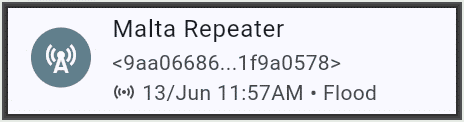
Every Meshcore device is uniquely identified to all other Meshcore devices by its “public key”. The public key is a string of 64 hexadecimal characters (meaning 256 bits). In your Meshcore “contacts” list the first few and last few characters of the public key are shown, for example with the repeater above.
If any two Meshcore devices happen to have the same first two characters in their public keys, this counts as a “collision”. This article talks about how you can avoid such a “collision”.
The first two characters of the public key are called the “short node identifier”. (There are only 254 possible values for this SNI, because “00” and “FF” are reserved.)
The public key is defined by a “private key” of 128 hex characters that is stored within the Meshcore device.
Recently I noticed that two of my repeaters happened to have the same SNIs (both “A2”). Such a collision does not keep the mesh network from doing its job, because flood and pathed packets will still reach their destinations. But such a collision makes traceroute and path analysis harder because the traceroute and path analysis tools don’t know exactly which of the two (or more) colliding repeaters is the one in the path.
I decided to try to fix this problem.
The way to fix the problem is to install a new public-private key pair into one of the offending devices. Of course you don’t want to install any old public-private key into the device. You want to select a public-private key for which the SNI happens to not be a match to the SNI of any other geographically nearby devices. A first step in this process, then, is to do a survey of all of your geographically nearby devices and stumble upon some sequence of two hex characters that happens to not be a match to any SNIs now in use. I picked a sequence “A4”.
You then need to somehow come into possession of a public-private key pair for which the SNI of the public key is (in this case) the value “A4”. As it turns out this is a bit like bitcoin mining where the miner tries over and over again to devise a few hex characters to insert into a candidate block of the blockchain, that will have the extreme good luck to yield a specific desired “hash” result when the candidate block gets passed through the hash function.
Fortunately if the only constraint is that the first two characters of the public key must have some particular value (here “A4”), then you only need to try around 256 randomly selected private keys to see which one gets lucky. As it turns out, a very nice person named Adam Gessaman offers a web site that will do this for you.
Okay, so let’s say that I have now stumbled upon a public-private key pair that privides a unique SNI for my geographic area. What I needed to do next was to select one of the offending devices and install this key pair into the device.

In my case, the device that is the target of this task happens to be a repeater (seen at right) that is at an elevation of about 11000 feet (around 2252 meters). When I deployed this repeater, it was a hike of several hours to reach this location. Wouldn’t it be a shame if, in fiddling with the public-private key pair of this repeater, I were to “brick” the repeater? I would then need to repeat this hike of several hours to rehabilitate or swap out the repeater.
So I did a practice run, loading a new public-private key pair into a spare repeater that was close at hand. If I were to brick that repeater, I could simply walk a few steps to deal it.
As it turns out, to load a new public-private key pair into a Meshcore device, you need only to load the new private key into the device. If you do this successfully, the device will itself then do the math to calculate the matching public key.
So the steps for a remote device are as follows.
Arrange to be using a companion app that is able to do remote administration. (I was using Meshcore Open.) Use the app to “log in” at the target repeater by means of its administrative password. Get into the CLI (command line interface). And now this is the scary part:
type “set prv.key” followed by the 128-character private key.
Will this brick the repeater? We hope not. Hopefully after you type this CLI command, what will happen next is some reassuring response like “success” or “ok”. When I did the practice run on the nearby repeater, what happened next was this reassuring message:
OK, reboot to apply! New pubkey: <128 hex characters that were no surprise because Mr. Gessaman had already told me the new public key>
But when I did it with my mountain-top repeater, there was no CLI response. No “OK”. Silence. Crickets.
I then typed “board” and got no response. Oh no. Maybe I bricked the repeater.
I then typed “ver” and got no response. Oh no. Maybe I bricked the repeater.
I then typed “board” again and the repeater seemingly reluctantly revealed its hardware identifier.
Okay nice. It seems I had not actually bricked the repeater that was several miles away and several thousand feet above me in elevation.
But what I did not know was whether I had in fact actually successfully set the new private key. I decided that I did not care one way or the other about this. If it turned out that I had not in fact actually successfully set the new private key, then a reboot would simply bring up the repeater again with its old public-private key pair. On the other hand if it turned out that I had actually successfully set the new private key, then a reboot would bring up the repeater again with its new public-private key pair. So I typed “reboot” and waited.
It eventually turned out that yes, I had successfully set the new private key, which means that I had also successfully set the new public key. And, somehow, my companion app had learned of the existence of the new “contact” which, of course, is defined by the new public key. But this new contact was not a “favorite” in my contact list, so I had to mark it as a “favorite”. And then I was able to log in at the repeater. (The admin password was unchanged from what it had been before.)
The next thing to do, I am told, is update the clock within the repeater. So I did so.
What a relief! Now I no longer have this collision. I can do pings and traceroutes for this repeater (and for the other device that had previously been part of the “collision”).
Leave a Reply